Desktop App Setup Guide
Follow these steps to install and connect the TimeBeacon Desktop App on Windows.
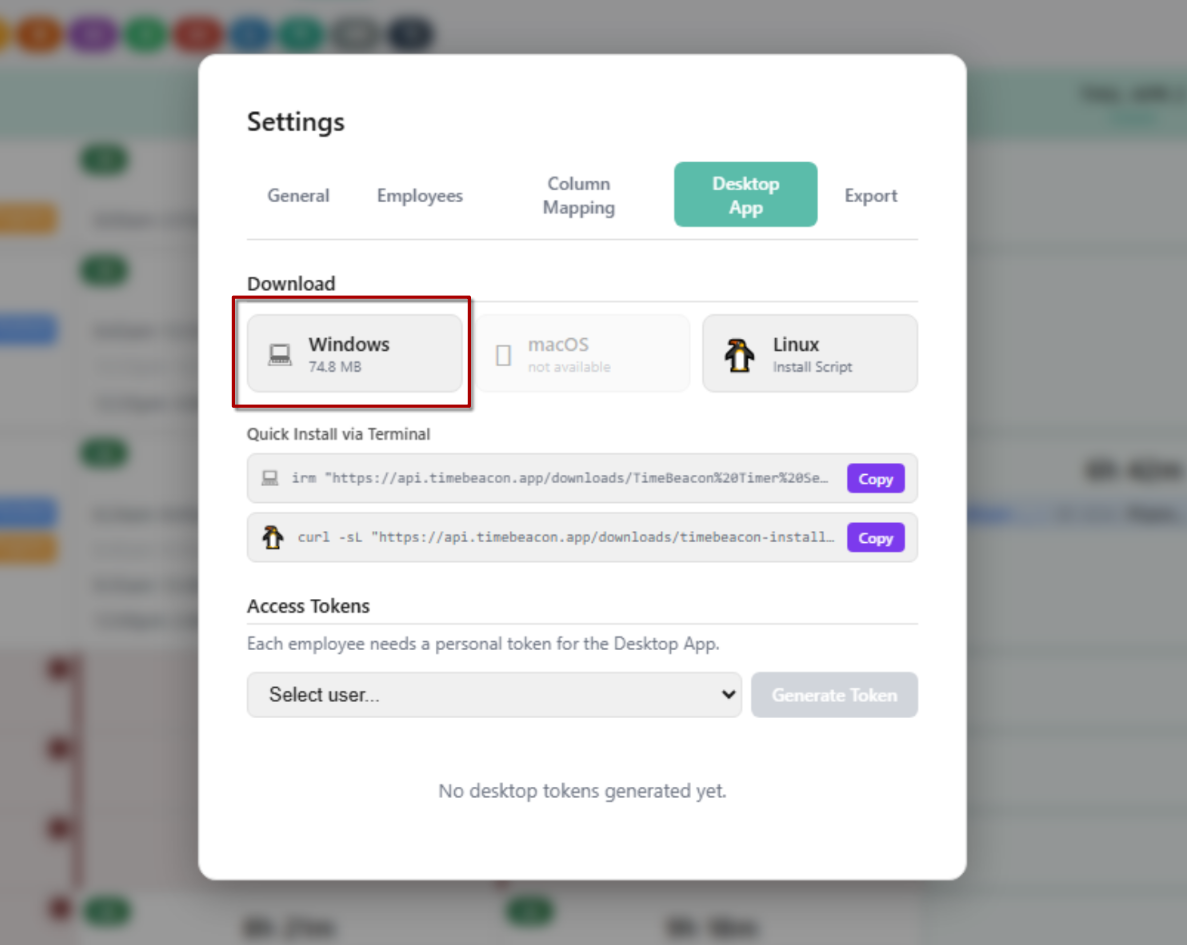
1. Open Desktop App Settings
In your monday.com board, open the TimeBeacon Board View settings. Navigate to the Desktop App tab and click the Windows download button.
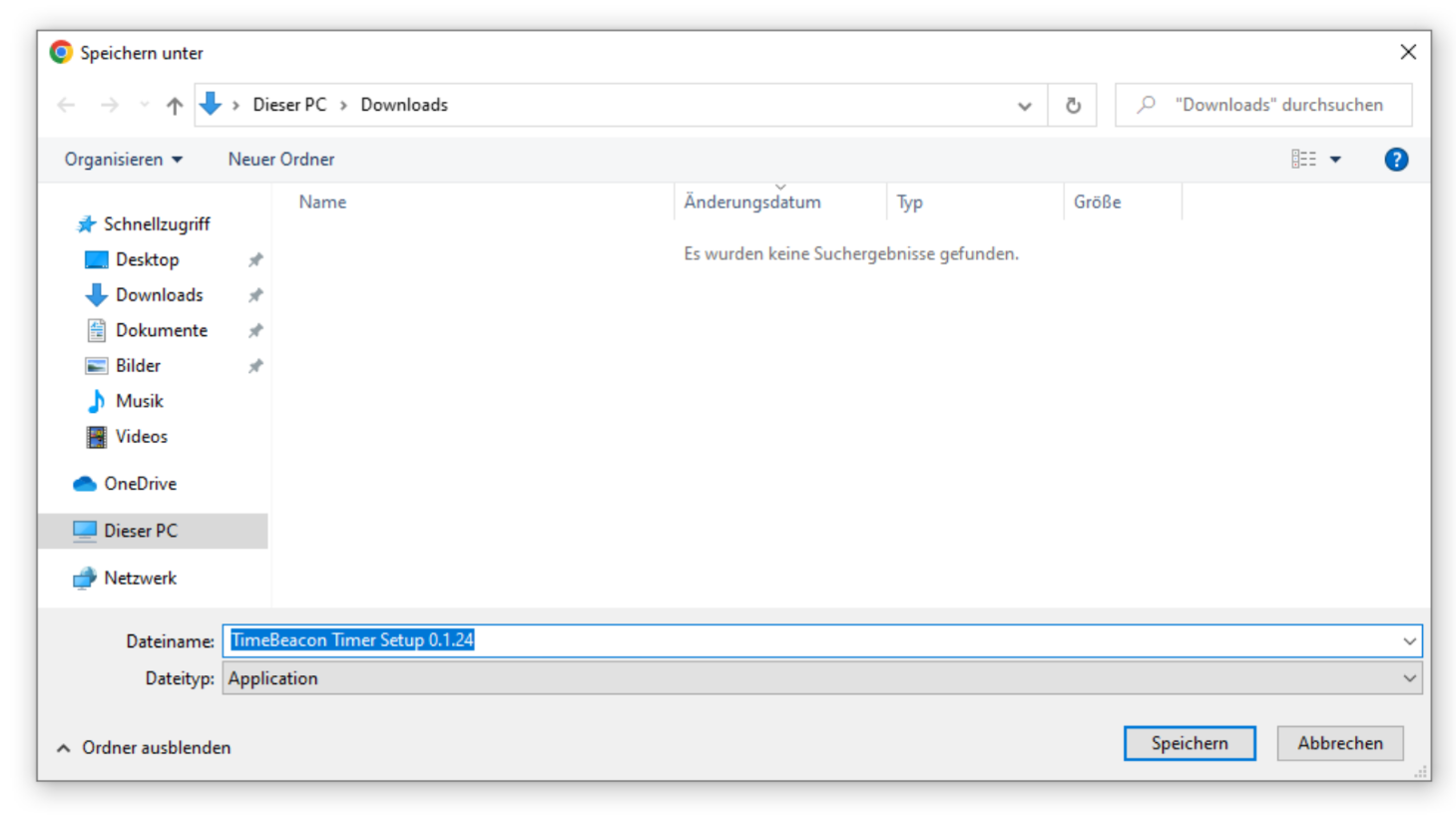
2. Save the Installer
Save the .exe installer file to your Downloads folder.
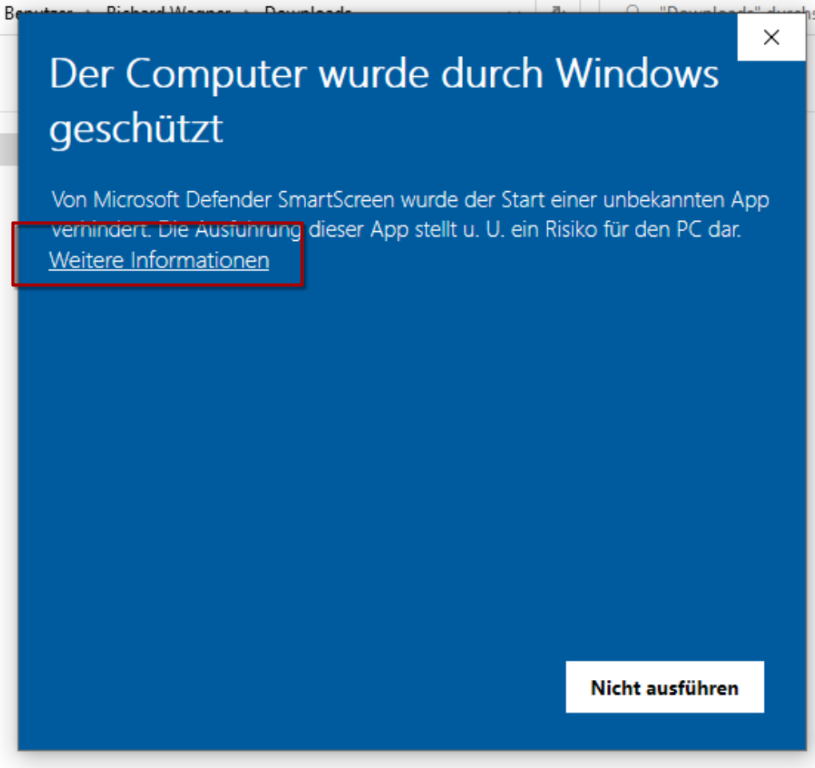
3. Windows SmartScreen Warning
Windows Defender SmartScreen may block the app. Click "More info" (or "Weitere Informationen") to proceed.
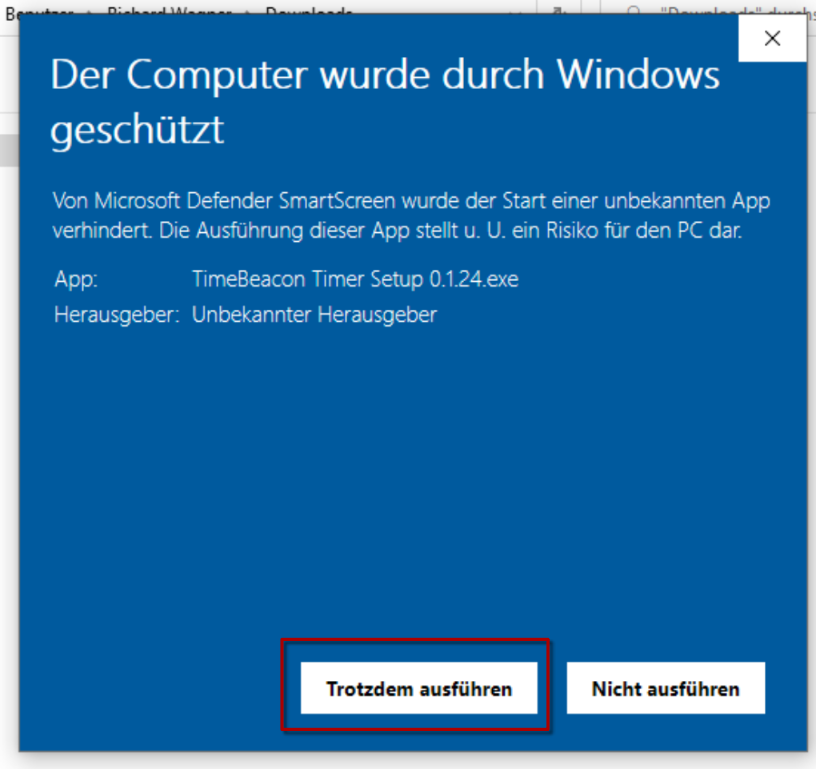
4. Run Anyway
Click "Run anyway" (or "Trotzdem ausführen") to start the installation. The app is safe — SmartScreen shows this warning for new applications.
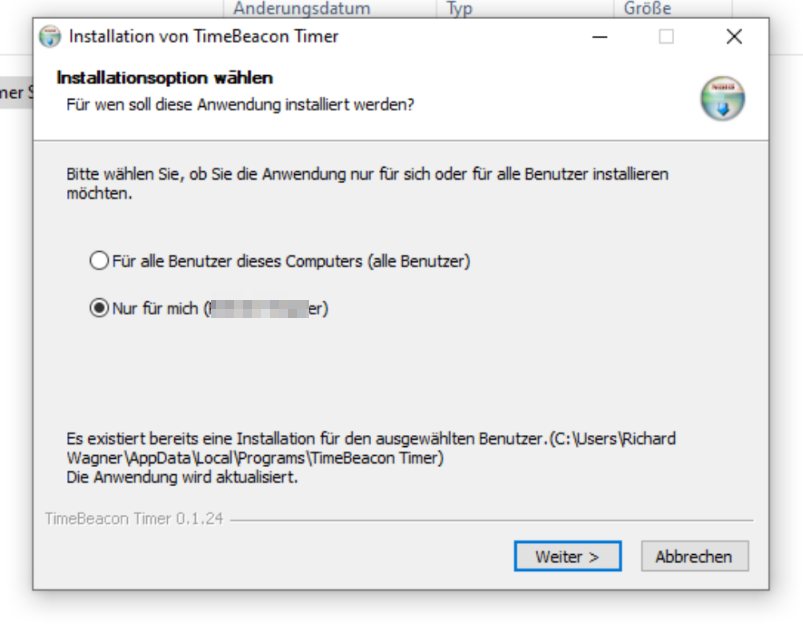
5. Choose Installation Options
Select whether to install for all users or just for you, then click Install.
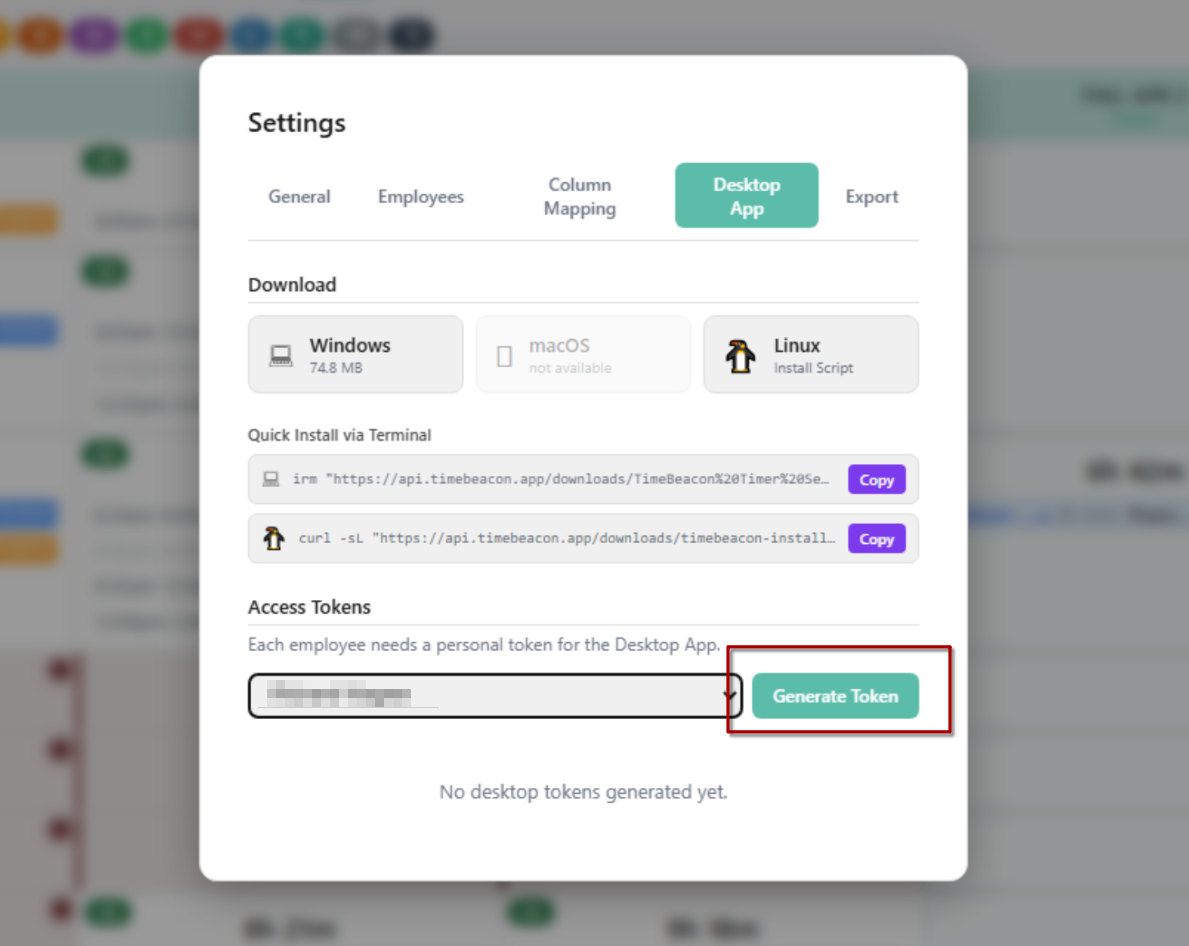
6. Generate an Access Token
Back in the TimeBeacon settings, select an employee from the dropdown and click "Generate Token".
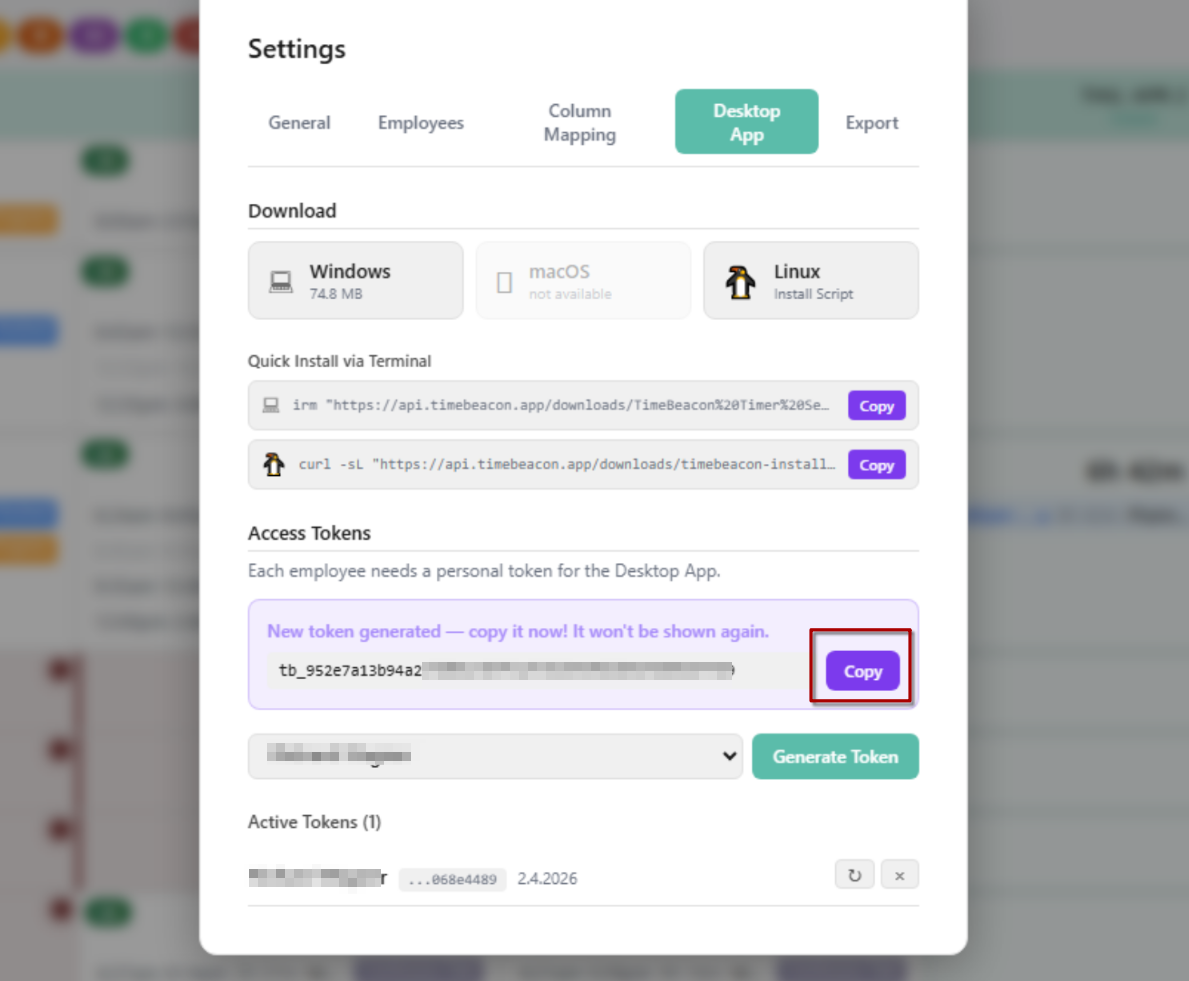
7. Copy the Token
Click "Copy" to copy the token. Important: This token is shown only once! Store it safely.
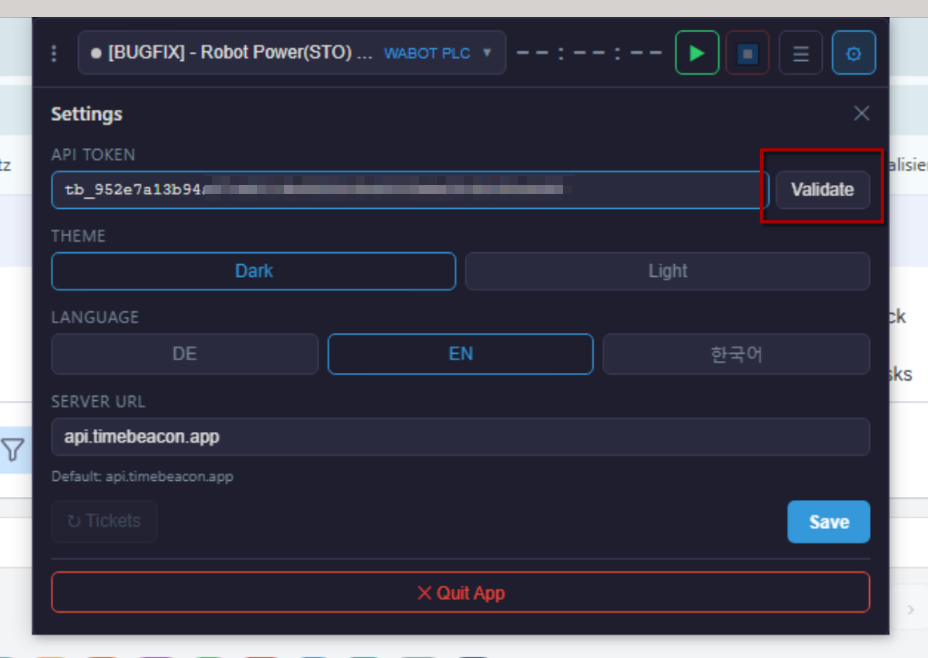
8. Paste Token in Desktop App
Open the Desktop App settings (gear icon). Paste the token into the API Token field and click "Validate".
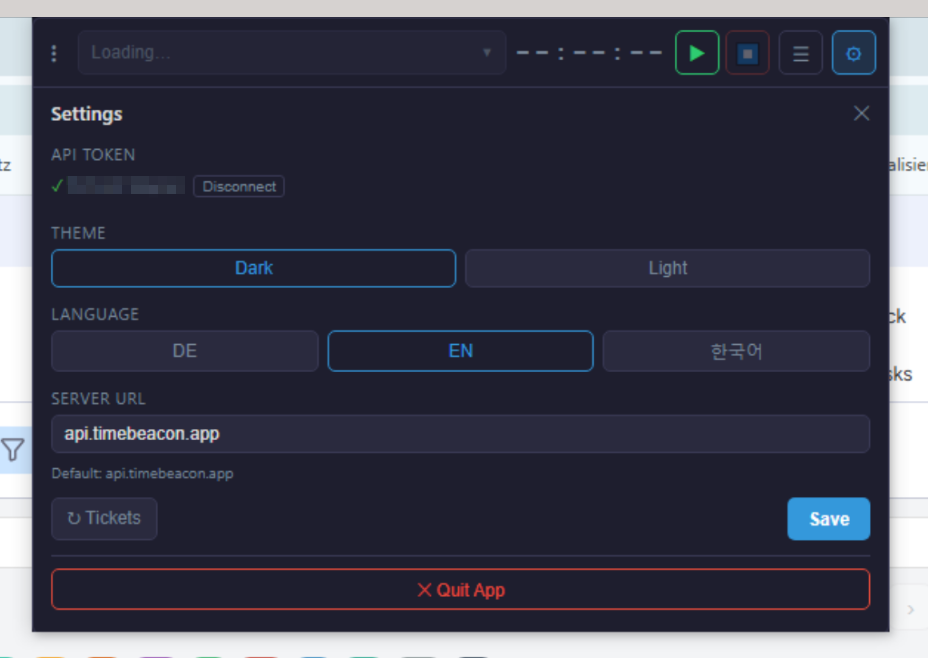
9. Connection Confirmed
A green checkmark confirms the connection is successful. Click "Save" to save your settings.
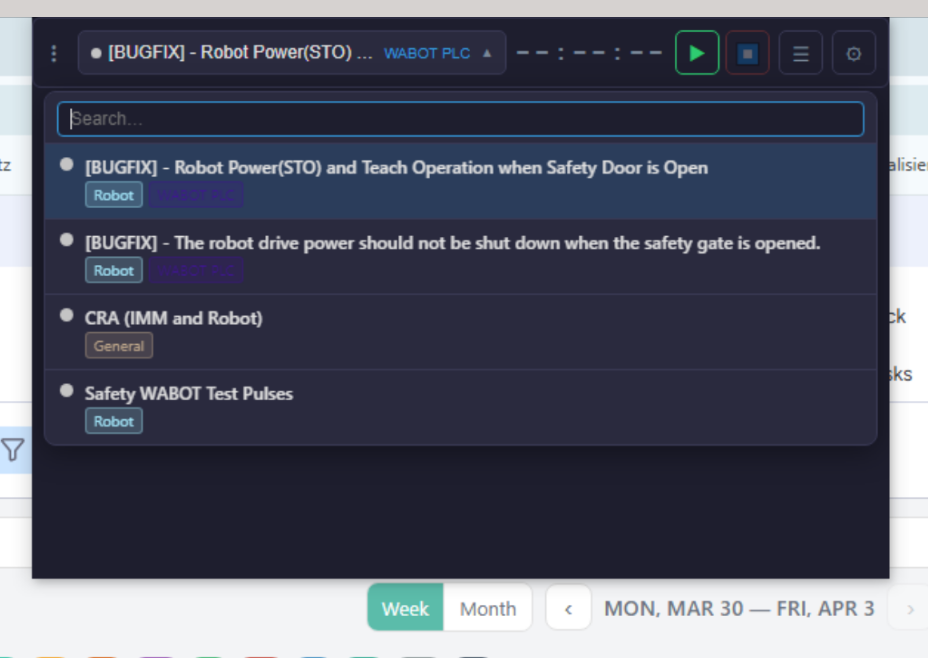
10. Select a Ticket
Choose a monday.com item from your ticket list to start tracking time.
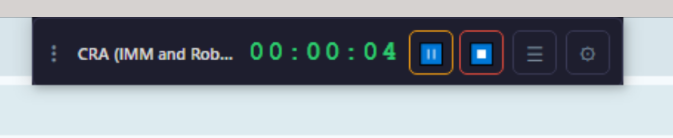
11. Start Tracking!
The timer is running! Use Pause and Stop to control your time tracking. Hours sync automatically to monday.com.